If you regularly record interviews, meetings, podcasts, or dictation notes, Microsoft Word’s new built-in transcription feature can save you a huge amount of time. You can automatically convert speech into text directly inside Word.
Word of warning for GDPR restricted and security conscious clients – if you use this tool your audio recordings are uploaded automatically to One Drive to be processed, and there is no indication from Microsoft as to where the files go in order to be automatically transcribed…
In this guide, we’ll walk you through exactly how to use Microsoft Word Transcription, including:
- How to access the transcription feature
- How to upload audio files
- How to record and transcribe live audio
- How to edit transcripts
- Common limitations to watch out for including the usage limits
- Why human transcription still delivers the best accuracy
Whether you’re a researcher, journalist, student, or content creator, this guide will help you get started quickly.
What Is Microsoft Word Transcription?
Microsoft Word Transcription is a built-in speech-to-text tool available with Microsoft 365. It allows users to:
- Upload audio recordings for automatic transcription
- Maximum 5 hours per month – users with a Microsoft 365 subscription can transcribe a maximum of 300 minutes of uploaded audio per month.
- Record conversations directly inside Word
- Identify different speakers and add timestamps
- Insert transcripts into documents
- Edit and organise transcripts
Before You Start
To use the transcription feature, you’ll need:
- Office 365 or Microsoft 365 subscription
- Microsoft Word
- An internet connection
- Audio files in supported formats (.mp3, .wav, .m4a, or .mp4)
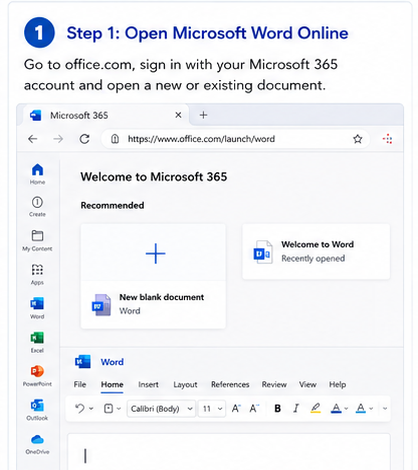
Step 1: Open Microsoft Word Online
Go to the official Microsoft Word website and sign into your Microsoft 365 account. Microsoft Word Online
Open a blank document or an existing document where you want the transcript to appear.
Step 2: Open the Transcribe Tool
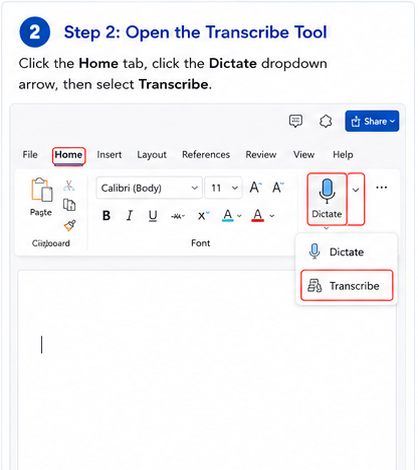
At the top of the screen:
- Click the Home tab
- Find the Dictate microphone icon
- Click the dropdown arrow beside it
- Select Transcribe
This opens the Transcribe panel on the right-hand side of the document.
Step 3: Choose Your Transcription Method
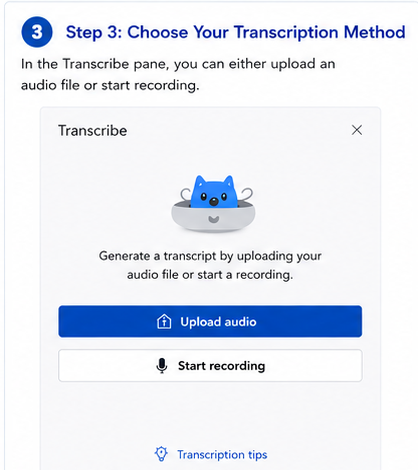
Microsoft Word gives you two options:
Option 1: Upload Audio
Use this if you already have a recording saved on your computer.
Option 2: Start Recording
Use this to record and transcribe live conversations in real time.
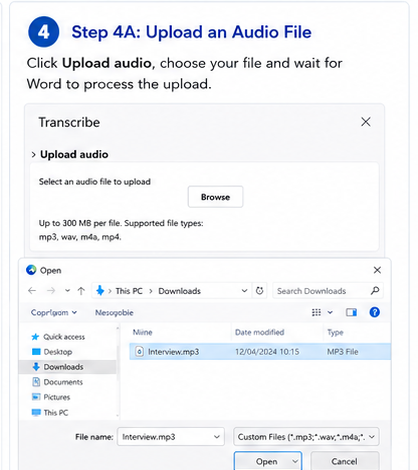
Step 4A: Upload an Audio File
To transcribe an existing recording:
- Click Upload audio
- Choose your file
- Wait for Word to process the upload
- Keep the Transcribe panel open during processing
Supported file formats include:
- MP3
- WAV
- M4A
- MP4
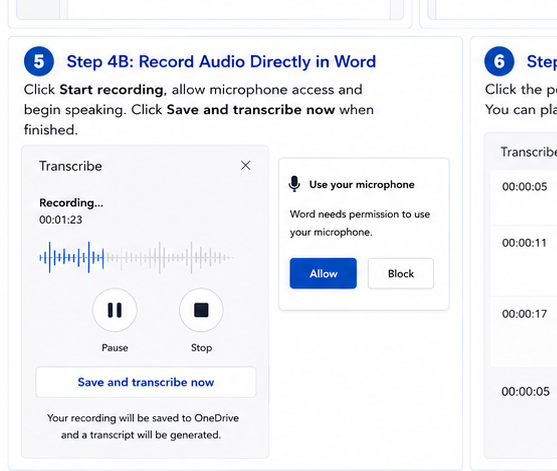
Step 4B: Record Audio Directly in Word
To capture live speech:
- Click Start recording
- Allow microphone permissions if prompted
- Begin speaking
- Click pause if needed
- Select Save and transcribe now when finished
Word automatically uploads the recording to OneDrive and generates the transcript.
Step 5: Wait for the Transcript to Generate
Once the upload or recording finishes, Microsoft Word will begin processing the audio.
The transcript appears in the Transcribe pane and usually includes:
- Speaker labels
- Time stamps
- Editable transcript sections
Processing time depends on audio quality and file size.
Step 6: Edit the Transcript
Automatic transcription is useful, but it’s rarely perfect.
To edit:
- Hover over a transcript section
- Click the pencil/edit icon
- Correct any mistakes
- Save your changes
You can also replay sections of the audio to verify wording.
Step 7: Insert the Transcript into Your Document
Once you’re happy with the transcript:
- Click Add to document beside individual sections
- Or choose Add all to document
The text is then inserted directly into your Word file for further formatting and editing.
Common Problems with Automatic Transcription in Word
Although Microsoft Word Transcription is convenient, its service still has limitations.
Users often experience issues with:
- Background noise
- Strong accents
- Multiple speakers talking at once
- Technical terminology
- Industry jargon
- Poor microphone quality
- Inconsistent punctuation
- Misidentified speakers
Even Microsoft acknowledges that transcripts may need manual correction after processing; depending on the above, there may be so much work to do it is more time and cost effective to transcribe the audio recording from scratch. We would say that with background noise, more than 3 speakers able to speak at the same time, technical language or a strong accent will all be circumstances where Word Transcription is a complete waste of time.
Why Human Transcription Is More Accurate
For important business, legal, academic, or research recordings, professional human transcription remains the gold standard.
At TP Transcription, experienced human transcribers carefully review every recording to ensure accuracy, clarity, and consistency.
Advantages of Human Transcription
Higher Accuracy
Human transcribers can understand accents, technical terms, overlapping speech, and context far better than AI tools.
Better Speaker Identification
Automatic tools frequently confuse speakers during fast-paced discussions. Human transcriptionists can accurately label participants.
Improved Formatting
Professional transcripts include:
- Proper punctuation
- Paragraph structure
- Speaker formatting
- Readable layouts
Contextual Understanding
Humans understand meaning and nuance rather than simply converting sounds into words.
Confidentiality and Quality Control
Professional transcription services offer secure handling of sensitive recordings and detailed proofreading processes.
When Should You Use Human Transcription Instead?
Automatic transcription works well for quick internal notes or rough drafts.
However, human transcription is strongly recommended for:
- Interviews
- Legal proceedings
- Medical recordings
- Academic research
- Board meetings
- Podcasts
- Focus groups
- Accessibility compliance
- Publications and reports
If accuracy matters, human review is essential.
Final Thoughts
Microsoft Word Transcription is a useful built-in tool for quickly converting speech into text inside Microsoft 365. It’s convenient, easy to access, and ideal for basic transcription tasks.
However, AI-generated transcripts still require editing and quality checks — especially for professional or client-facing work.
For businesses and professionals who need highly accurate transcripts, combining AI convenience with professional human transcription provides the best results.
Need Accurate Human Transcription?
TP Transcription Services are the leading human transcription service in the UK, offering secure, reliable, and highly accurate human transcription services for universities, academics, businesses, researchers, legal professionals and content creators across the UK. ISO 27001 accredited supplier.